Showing posts with label Useful Software's. Show all posts

Monday, 7 October 2013

10 Useful Features Hidden in VLC, The Swiss Army Knife of Media Players

10 Useful Features Hidden in VLC, The Swiss Army Knife of Media Players

vlc-desktop-window
There’s a good chance you already use the VLC media player. But VLC isn’t just a media player — it’s a complete Swiss Army Knife for digital videos and music, filled with useful and fun features you haven’t found yet.
If you’re just using VLC to play back local media files, you’re only using a tiny fraction of VLC’s capabilities. There’s so much more you can do with VLC, whether you’re using it on Windows, Mac, or Linux.

Convert Media Files

RELATED ARTICLE
How to Shrink Videos to Fit Your Android Phone with VLC
If you want to put a video on your Android phone, you’ll probably need to shrink it down to fit... [Read Article]
VLC can convert media files between the formats it supports. You could use this tomake a video smaller for a mobile device, convert media from an unsupported format to one your device supports, or even to extract the audio from a video and save it as a separate file.
To do this, click the Media menu and select Convert / Save. Load the file you want to convert, click the Convert / Save button, and select the type of file you want to convert it to. Use the Edit selected profile button to tweak the video encoding settings.
vlc-convert

Stream Media Over the Network or Internet

RELATED ARTICLE
How to Stream Videos and Music Over the Network Using VLC
VLC includes a fairly easy-to-use streaming feature that can stream music and videos over a local network or the Internet.... [Read Article]
VLC can stream media across the Internet or on your local network. To get started, click the Media menu, select Stream, provide the media file you want to stream and click the Stream button. You’ll be able to set up VLC as a media server so other computers on the network — or even around the world — can connect to your stream and view it.
Of course, if you want to stream over the Internet, you’ll probably need to forward ports on your router.

Record Your Desktop

RELATED ARTICLE
How to Record Your Desktop to a File or Stream It Over the Internet with VLC
VLC is full of powerful features, including the ability to record your desktop. VLC is great for quick captures, although... [Read Article]
VLC can load your desktop as an input device. This means that you can use the Convert / Save feature to save a video of your desktop, effectively turning VLC into screen capture software. You could also use this in concert with the Stream feature to broadcast a live stream of your desktop across the network or Internet with no additional software required.
vlc screencast header

Remotely Control Playback From a Browser

RELATED ARTICLE
How to Activate VLC’s Web Interface, Control VLC From a Browser, & Use Any Smartphone as a Remote
VLC includes a web interface, which you can enable to access your VLC player from a web browser, controlling playback... [Read Article]
VLC has an integrated HTTP server you can enable. Set this up and you can then remotely access your VLC client via a web browser. This would allow you to remotely control a media center PC from a web browser, controlling playback and queuing up audio or video files. You could even use this along with a smartphone to turn your phone into a remote control for VLC. There are mobile apps that function as remote controls for VLC, and these apps use VLC’s web interface to function.
image

Watch YouTube Videos

RELATED ARTICLE
How to Watch YouTube Videos in VLC Media Player
VLC Media player is capable of playing just about anything you can throw at it, but did you know that... [Read Article]
Want to play a YouTube video outside of your web browser? Just browse to a video on YouTube and copy its full URL — this should look something like the following:
https://www.youtube.com/watch?v=###########
Click the Media menu in VLC, select Open Network Stream, and paste the YouTube video’s URL into the box. VLC will load the video from YouTube and play it in a VLC window on your desktop.
When the video is playing, you could click the Tools menu and select Codec Information. You’ll see the full web address of the MP4 video displayed in the Location box, so you can copy-and-paste into a download manager — or just your web browser — to download the YouTube video to your computer.

Subscribe to Podcasts

VLC can be used to stream podcasts, so you don’t need any additional software if you want to listen to podcasts at your PC. Just click the View menu in VLC and select Playlist. Hover over Podcasts in the sidebar, click the + button, and paste the address of a podcast’s feed into the box. You can then stream the podcast’s episodes from within VLC.
vlc-subscribe-and-listen-to-podcast

Play Internet Radio

Before Pandora and Spotify, there were streaming Internet radio stations. There was a time when Internet users primarily streamed these radio stations from within Winamp, but they live on. You can view a searchable directory of radio stations from within VLC — just open the playlist and select Icecast Radio Directory. Perform a search for the kind of music you want to listen to or browse the list of free streaming radio stations.
Of course, VLC can also stream other Internet radio stations that aren’t included in this directory. You can generally find a “listen” link on their websites that will allow you to listen in a desktop player like VLC.
vlc-internet-radio-directory

Apply Video and Audio Effects

RELATED ARTICLE
Rotate a Video 90 degrees with VLC or Windows Live Movie Maker
Have you ever captured video with your cell phone or camcorder only to discover when you play it back on your computer that the video is rotated 90 degrees? Or maybe you shot it that way on purpose because you preferred portrait style to a landscape view? Before you go straining your neck or flipping your monitor on it’s side to watch your video, we’ll show you a few easier methods. [Read Article]
VLC can apply audio effects, video effects, and tweak the way a video’s audio and video line up. Click the Tools menu and select Effects and Filters. From here, you can apply an audio equalizer or video effects, such as cropping, rotating, overlaying, or colorizing a video. From the Synchronization tab, you can tweak the way a video’s audio and video stream line up. This allows you to fix broken videos where the audio and video are out of sync.
vlc-effects
As with other VLC features, these effects can be combined with other features. For example, you could permanently apply effects to a video by enabling these effects before using the Convert / Save feature.

ASCII Playback

RELATED ARTICLE
Stupid Geek Tricks: Watch Movies in Your Linux Terminal Window
In these days of high definition videos everywhere (even YouTube), only the truly geeky would decide to watch their movies in ASCII text in a terminal window. The surprising thing is that some videos are even fairly watchable. [Read Article]
ASCII playback isn’t a very useful feature, but it’s certainly an amusing one. In ASCII playback mode, VLC will display a video as ASCII characters rather than play it normally. It’s extremely impractical, but extremely geeky and worth a test drive if you want to surprise and amuse someone.
Click the Tools option in VLC, select Preferences, and click the Video icon. Click the Output box and select Color ASCII art video output. Save your settings, restart VLC, and start playing a new video. This feature works best with simple videos, such as cartoons with large sections of flat color.
vlc-ascii-art
After you’re done, go back into this window, click the Output box, and select Automatic to make VLC play videos normally.

Use a Video Wallpaper

RELATED ARTICLE
Set a Video as Your Desktop Wallpaper with VLC
Are you tired of static desktop wallpapers and want something a bit more entertaining? Today we’ll take a look at setting a video as wallpaper in VLC media player. [Read Article]
VLC also allows you to set a video as your desktop wallpaper, replacing your desktop background with a video. It’s not very practical and extremely distracting, but hey — it’s something you can’t do with many media players.
To do this, open VLC’s preferences window, click the Video icon, and select DirectX (DirectDraw) video output in the Output box. Restart VLC, load a video, and you’ll be able to click the Video menu and select Set as Wallpaper to turn the video into your desktop wallpaper.
When you’re done, just change VLC’s Output setting back to Automatic and restart it.

VLC is also available for other platforms, giving you excellent compatibility with different media formats on almost any device. In addition to Windows, Mac, and Linux, VLC can run on anAndroid phone or tablet or an iOS device like an iPhone, iPad, or iPod touch. VLC will also soon be available for Windows 8′s Modern interface and Windows Phone.

Monday, 4 June 2012

Randomly Rename Every File in a Directory

image
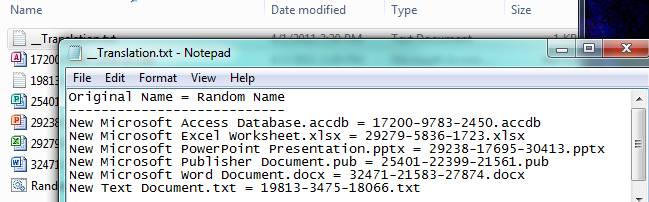
UPDATE: An “undo” function has been added to the script. There are comments in the batch script which explain how to use this.
Looking to have a little fun with your files or play a clever prank on someone? With a simple batch script you can randomly rename every file in a directory instantly.
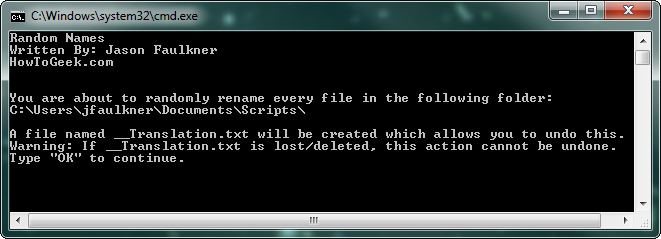
Just copy our RandomNames.bat script into a folder and run it.
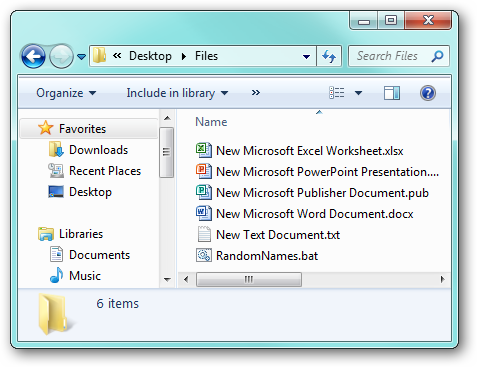
Before:

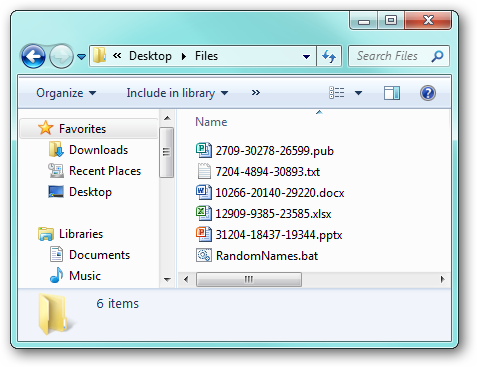
After:

Uses

While it may not be immediately obvious, there are several somewhat practical uses for this:
  • Easily bulk rename picture files to randomize the order they appear in slideshows or on digital picture frames.
  • A practical joke (see the warning below).
  • In case the “random” button on your MP3 player isn’t geeky enough for you.

Options

There are a couple of options you can configure in the script:
  • Prepend the file names – instead of renaming the entire file, a random string is added to the beginning of each file name.
  • Undo renaming -
You can set these options by opening the RandomNames.bat file in Notepad and editing accordingly. There are comments included to let you know how to set each option.

Warning!

When the script runs, it warns you that deleting the created translation file (__Translation.txt) will prevent you from being able to undo the renaming.

Needless to say, it would be a good idea to backup your original files before renaming them all.
Use responsibly and have fun!

Sunday, 3 June 2012

Coffee Keeps Your Windows PC Awake until Your Downloads Complete

There’s no need to go mucking about in your power settings to temporarily keep your machine awake, let Coffee perk it up and keep everything active until your downloads are finished.
Practically everyone has left their machine on to finish a download, just accepting that wasting the electricity/money to run it all night is better than sitting up until 3AM when the files are done downloading. Coffee offers a simple solution in the form of a temporary sleep/hibernation blocker for Windows PCs. Run it, point it at the network adapter that data is flowing through, and give it a minimum data threshold before it shuts off and allows the computer to sleep or hibernate on its own.
Visit the link below to grab a copy. Coffee is a Windows only application and required Microsoft .NET.
Coffee [SourceForge via Addictive Tips]

Simple Tips to Reduce Disk Usage in Windows 7

image
If you’re wondering what have been taking up space on your hard disk, then you have come to the right place. In today’s article, we’ll show you how to get rid of unneeded files from your computer.
First of all let’s find out what’s hogging your hard disk. We recommend that you download SpaceSniffer. Once you start it up, it will map your hard drive,  and shows big files and folder in your system. SpaceSniffer comes with a user manual that shows you every neat stuff that you can do with SpaceSniffer.

some of our favourite ones are: filtering temporary files …

… or finding files that we have not touched for more than a year; they are usually good candidates for removal.

Among all the files,  Pagefile.sys and hiberfil.sys stood out in SpaceSniffer; They occupied six GB of our hard disk.

In a default installation, Windows creates a page file (pagefile.sys) that Windows uses to hold part of a program or memory that does not fit the memory. Microsoft recommends us not to remove this file – even when you have lots of memory. However, we can remove hiberfil.sys from our system, and we wrote an instruction on how to do it.

Cleaning Restore Points

Installing programs or drivers can make Windows run slowly or unpredictably. Windows maintain restore points, and use them to return your PC’s system files and programs to a time when everything works fine. However, restore points do take up a lot of space in our hard disk. We can use disk clean up to remove restore points, but if you decide to do this you won’t be able to roll back your system. Look up Disk Clean up from your start menu and run it as administrator.

Disk Cleanup reduces the number of unnecessary files. It allows you to remove temporary files, empties your recycle bin, and remove a variety of system files and other items that you no longer need.

Open the “More Options” tab and click the clean up button.

You might want to consider scheduling disk clean up to remove old and temporary files from your PC from time to time.

Use CCleaner to Get More Space

While Disk Cleanup is a great tool to delete junk files, CCleaner gives you more options to clean your computer. CCleaner default setting lets you clean IE Junk files, Windows Explorer cache, and system dumps.

Head over to the applications tab and  you will find that you can remove unneeded files from each application selectively. For example, you can choose to clean Firefox cookies, but not Chrome’s.

Windows maintain a set of registry files that stores settings for your PC, for instance, what background that you use for your desktop. Whenever we uninstall program, some unused file association may remain dangling in the registry, and overtime your registry may become bloated and slows down your PC. CCleaner gives you an easy way to clean your registry. Click the registry icon, perform a scan for issues, and click the “fix selected issues button” to clean your registry.

CCleaner gives you a set of tools to remove unneeded files. It’s uninstall loads up files way faster than Windows uninstall “add remove programs”.

System Restore in CCleaner gives more option to remove system restore points than Disk Cleanup. It greys out your  last system restore point, so that you can’t remove it, for safety reason.

Windows will not delete the actual data that you deleted, it simply remove there reference to that file, and overwrite it when you save new data. This pose a risk; some clever geek may sneak into your computer, and reconstruct your data before Windows over write it. If you’re worried, you can instruct CCleaner to clean these kind of data using the “Drive Wiper”.

There are two type of wipe, free space and entire drive. You should select free space only, unless you want to erase every file in the drive.

CCleaner gives you some security options, but simple overwrite will be enough for most occasions.

Head over to the options’ Advance settings and make sure that you select “Save all settings to INI File”. You can also  schedule it to clean your computer on a regular basis.

We hope that our tips help you get back your hard disk space. Feel free to share any other tips with the other fellow readers in the comments section.

Saturday, 2 June 2012

Dual Monitor Taskbar Is an Open Source Taskbar Extender for Windows 7

Dual Monitor Taskbar adds a functional taskbar to your secondary Windows 7 monitor complete with Area peak.
There are several application suites on the market that include multiple taskbar functionality (such as Display Fusion Pro) but if you don’t need all the extra features and simply want a functional taskbar, Dual Monitor Taskbar is an open source application that offers Aero peek, a system clock, and application pinning.
Hit up the link below to grab a copy and extend your taskbar today.
Dual Monitor Taskbar [Sourceforge via Addictive Tips]

Bump Your Desktop Into 3D With BumpTop


Your desktop doesn’t have to be a boring graveyard for lost and forgotten files anymore! Transform it with BumpTop into 3D desktop that help you keep organized. Like a real desk. Create the desktop that suits your needs and style.
There’s nothing about the installation, you just keep on pressing “Forward” and you are done. When you launch BumpTop for the first time, you’ll be taken in tutorial to show you how to use BumpTop efficiently, it doesn’t last more than a minute so make sure you watch it.

Features:

Right after the tutorial you’ll see you shiny new 3D desktop. Let’s start using the new desktop by learning  some basics.

Right-Click Options:

You right-click menu is now replaced by BumTop’s menu, but you can still access your normal menu by choosing more.

Piles:

You can make piles of files, photos and folders just like how you do in real life. You can do this by selecting them and drag across the pile icon that appears without letting go of the mouse as described below:

Walls:

You can pin stuff to the walls, like photo frames or TO-DO notes and when you want to have better view of the wall, simply double-click it.

Setting Window:

BumpTop comes with plenty of setting you can choose from including the infinite desktop mode that allows you to have no boundaries or fixed size for your desktop.

Themes:

The best thing in BumpTop is you can customize it with themes. It makes you feel like you are in a different room or went to somewhere else! You can download themes or you can create your own room.


Download BumpTop [via Brothersoft.com]
BumpTop themes [via Customize.org]