Showing posts with label What?. Show all posts

Saturday, 2 June 2012

What is Wake-on-LAN and How Do I Enable It?

banner-01-01
Technology often yields ridiculous conveniences, like being able to turn on your computer from miles away without pushing the power button. Wake-on-LAN, has been around for a while, so let’s see how it works and how we can enable it.

What is Wake-on-LAN?

Wake-on-LAN is an industry standard protocol for waking computers up from a very low power mode remotely. The definition of “low power mode” has changed a bit over time, but we can take it to mean while the computer is “off” and has access to a power source. The protocol also allows for a supplementary Wake-on-Wireless-LAN ability as well.

WoL is dependent on two things: your motherboard and your network card. Your motherboard must be hooked up to an ATX-compatible power supply, as most computers in the past decade or so are. Your Ethernet or wireless card must also support this functionality. Because it is set either through the BIOS or through your NIC’s firmware, you don’t need specific software to enable it. Support for WoL is pretty universal nowadays, even when it’s not advertised as a feature, so if you have a computer built in the past decade or so you’re covered. If, however, you have a more modern computer, you may find that you have advanced BIOS options for allowing the computer to power on via a time schedule. It’s not technically WoL, but in terms of functionality, it’s pretty close.
For those of you who build your own rigs, take care when buying an Ethernet card. While most built-in cards on motherboards don’t need this step, discrete network cards often need a 3-pin cable attached to the motherboard to support WoL. Do your research online before you buy so you’re not disappointed later on down the line.

The MagicPacket: How WoL Works

WoL-enabled computers essentially wait for a “magic packet” to arrive that includes the NIC’s MAC address in it. These magic packets are sent out by professional software made for any platform, but can also be sent by routers and internet-based websites. The typical ports used for WoL magic packets are UDP 7 and 9. Because your computer is actively listening for a packet, some power is feeding your network card which will result in your laptop’s battery draining faster, so road warriors should take care to turn this off when you need to eke out some extra juice.

Magic packets are usually sent over the entirety of a network and contain the subnet information, network broadcast address, and the MAC address of the target computer’s network card, whether Ethernet or wireless. The above image shows the results of a packet sniffer tool used on magic packet, which brings into question exactly how secure they are when used in unsafe networks and over the internet. On a secure network, or for basic home use, there shouldn’t be any practical reason to worry. Many motherboard manufacturers often implement software along with WoL capabilities to offer hassle-free or largely configuration-free usage scenarios.

Enabling WoL on Your System

BIOS
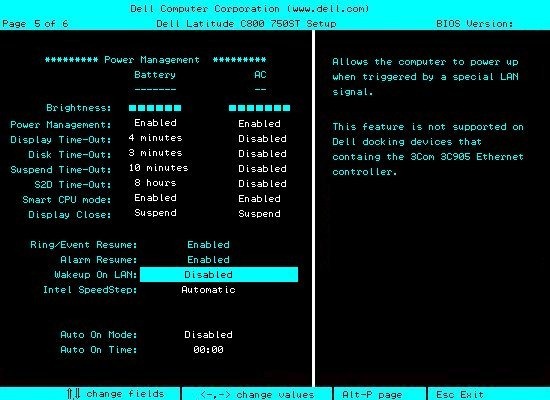
Most older computers and many modern ones have their WoL settings buried in the BIOS. Depending on your system, you need to hit Escape, F2, or Delete to get into the BIOS, but if you’re not sure then you should check your system’s documentation. Once you’re in, check under Power Management or Advanced Options or something of that sort.

On this HP computer’s BIOS, the setting is found near the “resume after power failure” option.
Many computer, however, do not have a BIOS option. Fortunately, this doesn’t mean that the capability isn’t there, it just means we need to go through the operating system to enable WoL.
Windows
Click Start, then search for and open the Device Manager. Find your networking device in the list.

Right click on it and go to Properties, then click on the Advanced tab.

Scroll down in the list to find “Wake on Magic Packet” and change the Value to “Enabled.” You can leave the other “Wake on” settings alone. Click OK when you’re done.
OS X
Open up your System Settings and choose Energy Saver.

Under the Options tab, you should see “Wake for Ethernet” or something similar. This enables Wake-on-LAN.
Linux
Ubuntu has a great tool that can check to see if your machine supports WoL and can enable it. Open up a terminal and install “ethtool” with the following command:
sudo apt-get install ethtool
You can check your compatibility by running:
sudo ethtool eth0
If your default interface is something else, substitute it for “eth0”.

Look for the “Supports Wake-on” section. As long as one of the letters listed is “g,” you can use magic packets for WoL. To enable this option, use the following command.
sudo ethtool -s eth0 wol g
This should take of it. You can run the command to check and see if it’s enabled now. Look for the “Wake on” section. You should see a “g” instead of a “d” now.

Sending WoL Magic Packets

To send out WoL requests, you have a cornucopia of options available.

Depicus has an excellent series of lightweight tools to get the job done, including a GUI-based one for Windows and command-line-based one for both Windows and Mac OS. Wiki.tcl.tk has a great cross-platform lightweight script that handles the requests as well.
DD-WRT has great WoL support, so if you don’t feel like downloading software to do it, you really don’t have to. Lastly, if you’re out and about, you can use your Android device to wake your computers.

Wednesday, 30 May 2012

What Are These desktop.ini Files I Keep Seeing?


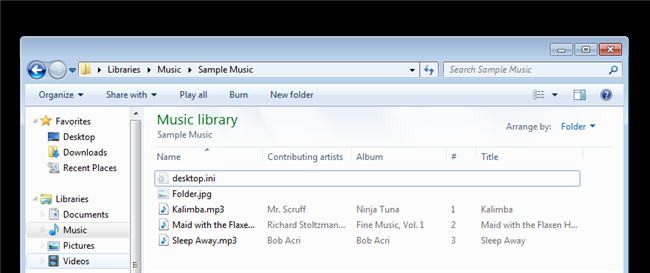
sshot-3
Have you ever seen those weird desktop.ini files that seem to pop-up everywhere? The truth is that they do serve a purpose and Windows uses them to identify how a folder should be displayed, much like the .DS_Store files used in OS X.
When you create a new folder in Windows it is created with the standard folder icon, one common use of the desktop.ini file is to use to it set a custom icon for a folder, however this is not the only thing that it is used for. A typical desktop.ini will look like something like this:
[.ShellClassInfo]
ConfirmFileOp=0
IconFile=Folder.ico
IconIndex=0
InfoTip=Type Your InfoTip Here.
The desktop.ini file can contain alot of attributes but the following custom attributes are the most common:
  • ConfirmFileOp
  • IconFile
  • IconIndex
  • InfoTip
ConfirmFileOp
If set to 0, avoids the “You Are Deleting a System Folder” when deleting or moving a folder.
IconFile
Specify a custom icon file. You can use either a .ico, .exe or .dll file.
IconIndex
Specify the index for a custom icon. If the file assigned to IconFile only contains a single icon, the IconIndex should be set to 0.
InfoTip
A string of text that will be displayed when you hover over the folder.
As you can see the desktop.ini file holds folder customization information. They are hidden by default and will only be displayed if you choose to Display Protected Operating System Files by unchecking the checkbox.
You can customize your folders by creating your own desktop.ini folder in Notepad. Make sure to change the type to Unicode before saving though.

Saturday, 26 May 2012

What’s the Difference Between JPG, PNG, and GIF?

sshot-331 copy
As we keep building on old image technology, types of file formats keep piling up, each with their own nuances and uses. JPG, PNG, and GIF have become the most common, but what sets them apart from each other?
These formats have become the most popular because of their compatibility with modern browsers, broadband speeds, and the needs of average users. Join us as we take a detailed look at each format, and cover the strengths and weaknesses of each.

JPG (Joint Photographic Experts Group)

JPG was a filetype developed by the Joint Photographic Experts Group (JPEG) to be a standard for professional photographers. Like the method ZIP files use to find redundancies in files to compress data, JPGs compress image data by reducing sections of images to blocks of pixels or “tiles.” JPG compression has the unfortunate side effect of being permanent, however, as the technology for the file was created for storing large photographic image files in surprisingly small spaces, and not for photo editing.

JPGs have become the de facto standard image of the internet because they can be compressed so much. A typical JPG can be compressed at a ratio of anywhere from 2:1 to as high as 100:1, depending on your settings. Particularly back in the days of dial-up internet, JPGs were the only viable way to send image information.
However, because of the lossy nature of JPG, it is not an ideal way to store art files. Even the highest quality setting for JPG is compressed, and will change the look of your image, if only slightly. JPG is also not an ideal medium for typography, crisp lines, or even photographs with sharp edges, as they are often blurred or smeared out by anti-aliasing. What is potentially worse, is that this loss can accumulate—saving multiple versions of artwork can cause degradation with every save. Even so, it is common to see these things saved as JPG, simply because the filetype is so ubiquitous.

Close up of a high quality JPG.

Close up of a very lossy JPG.
The Joint Photographic Experts Group developed lossless JPG technology to combat this serious problem of quality degradation. However, because of dial-up speeds and general lack of interest in high quality non-degrading files, the JPG-LS standard never caught on.
It is possible to download plugins that allow users to open and save the lossless JPG2000, and some programs, like Apple’s Preview application, can read and save JPG2000 directly out of the box.
JPGs support 24-bit RGB and CMYK, as well as 8-bit Grayscale. I personally do not recommend using CMYK color spaces in JPGs. It’s also important to note that Grayscale JPGs do not compress nearly as much as color ones do.

GIF (Graphics Interchange Format)

GIF, like JPG, is an older filetype, and one generally associated with the internet as opposed to photography. GIF stands for “Graphics Interchange Format” and employs the same lossless LZW compression that TIFF images use. This technology was once controversial (for patent enforcement issues) but has become an accepted format since all patents have expired.

Close up of an 8-bit color GIF.
GIF is by nature an 8-bit color file, meaning they are limited to a palette of 256 colors, which can be picked from the RGB color model and saved to a Color Look Up Table (CLUT), or simply “Color Table.” There are, however, standard color palettes, like the “Web Safe” palette. An important note is that Grayscale images are by nature an 8-bit palette, so saving them as GIF is fairly ideal.
Apart from support for transparency, GIF also is supports animations, limiting every frame to 256 preselected colors.
While GIF is not lossy like JPG, conversion to 8-bit color distorts many images, using dither filters to optically blend, or “diffuse,” colors, similar to halftone dots or pointilism. This can radically alter an image for the worse, or, in some cases, be used to create an interesting effect.
Because of this non-lossy format, GIF can be used to keep tight lines on typography and geometric shapes, although these things are better suited to vector graphic files like SVG or the Adobe Illustrator native format, AI.

GIF is not ideal for modern photography, nor image storage. At small sizes with very limited color tables, GIF images can be smaller than JPG files. But at most ordinary sizes, JPG compression will create a smaller image. They are largely out of date, useful only to create dancing babies or to sometimes create rough transparencies.

PNG (Portable Network Graphics)

PNG stands for Portable Network Graphics (or, depending on whom you ask, the recursive “PNG-Not-GIF”). It was developed as an open alternative to GIF, which used the proprietary LZW compression algorithm discussed earlier. PNG is an excellent filetype for internet graphics, as it supports transparency in browsers with an elegance that GIF does not possess. Notice how the transparent color changes and blends with the background. Right-click the image to see. This is actually one image that is on four different background colors.
PNG supports 8-bit color like GIF, but also supports 24-bit color RGB, like JPG does. They are also non-lossy files, compressing photographic images without degrading image quality. PNG tends to be the biggest of the three filetypes and isn’t supported by some (usually older) browsers.
In addition to being an excellent format for transparency, the non-lossy nature of 24-bit PNG is ideal for screenshot software, allowing pixel for pixel reproduction of your desktop environment.

Which to use?

From left to right, these files are: 24-bit JPG Compressed, 8-bit GIF, 8-bit PNG, Full Quality 24-bit JPG, and 24-bit PNG. Note that the file sizes increase in this same direction.
PNG is the largest image type for bigger images, often containing information you may or may not find useful, depending on your needs. 8-bit PNG is an option, but GIF is smaller. Neither are optimal options for photography, as JPG is much smaller than lossless PNG with only minimal loss of quality. And for storage of high resolution files, JPG compresses to tiny proportions, with quality loss only visible on close inspection.
In short:
  • PNG is good option for transparency and non-lossy, smaller files. Larger files, not so much, unless you demand non-lossy images.
  • GIF is largely a novelty and only useful for animation, but can produce small 8-bit images.
  • JPG is still the king for photographs and photo-like images on the internet, but be careful, as your file can degrade with every save.

What is Cloud Computing and What Does This Stupid Buzzword Mean?


The other day a reader wrote in asking if cloud computing could help save his hard drive space, which made me realize that it’s time to talk about exactly what this moronic buzzword really means.

What is Cloud Computing?

According to the National Institute of Standards and Technology, the definition for “Cloud Computing” is this incomprehensible piece of nonsense clearly written to be as confusing as possible:
Cloud computing is a model for enabling convenient, on-demand network access to a shared pool of configurable computing resources (e.g., networks, servers, storage, applications, and services) that can be rapidly provisioned and released with minimal management effort or service provider interaction.
So what’s a definition for real people?

Cloud Computing = Web Applications

That’s all there is to it. If you’re using a web or internet-based application from a major provider like Google or Microsoft, you’re using cloud computing. Congrats!
Every web application that you’ve ever used, like Gmail, Google Calendar, Hotmail, SalesForce, Dropbox, and Google Docs, are based on “cloud computing”, because when you connect to one of these services, you’re really connecting to a massive pool of servers somewhere out there on the internet. The client doesn’t need to be a web browser, but that’s the direction everything is heading.
Think there’s more to it than that? Don’t believe me? Just listen to Larry Ellison, the CEO & co-founder of Oracle, talk about how moronic this term really is:


So Why Cloud Computing?

We’ve already established that it’s a pointless term that simply describes web applications, which have been around for a very long time—but in order to get businesses to start switching to web applications instead of self-hosted servers, the marketing types invented a new buzzword.
The reason why they used the word “cloud” in the buzzword is simple: in network diagrams, the internet is usually represented with a cloud in the middle of the drawing. Those marketing drones are inventive, aren’t they?

So basically the term itself is just a way for consultants and companies to sell more services in a shiny new package. Here’s a good illustration of how this works:

Comic by Geek and Poke

How Can Cloud Computing Help Me?

Since businesses everywhere are moving their applications to the web and coming out with new and interesting features accessible through your web browser, you’ll soon be able to access virtually anything from any browser on any PC, and the lines will blur between desktop and the internet.

Now that Microsoft has finally released the beta for Internet Explorer 9, which supports new web standards like HTML5 and uses hardware acceleration to make the whole experience speedy—every browser will finally be on the same footing. When Microsoft said that IE9 is going to change the web, they weren’t kidding—they were the only ones holding the web back with their anemic IE7 and IE8 browsers, not to mention the ancient IE6. And now the nightmare is finally almost over.
It’ll get even more interesting whenever Chrome OS is finally released, which is basically an entire operating system built around a web browser as the primary interface, with all of your applications as web applications instead of local—hopefully it will support web integration like IE9 does with the Windows 7 taskbar.

How Is Cloud Computing Different for Businesses?

If you’re in the IT world you’re probably scratching your head at this point and thinking that I’m oversimplifying the idea behind cloud computing, so let’s explain the real difference from the more technical side of things.
In the past, every company would run all of their applications on all of their own servers, hosted at their own location or data center. This obviously requires a lot of maintenance and money to keep everything running, upgraded, and secure.

From a business perspective, businesses can now move much of their computing to cloud services, which provide the same applications that you would install on your own servers, but now they are accessible over the internet for any of their customers. Have you read about companies switching to Google Docs? That’s a perfect example of companies switching from hosting their own local servers to using cloud computing instead.
But what if your company provides a service to others? You can also take advantage of cloud computing by creating applications that don’t run on your own servers, but actually utilize server resources provided by one of the big providers—Google has App Engine, Microsoft has Windows Azure, and Amazon has their EC2 framework.

Most of these services operate on a pay-for-resources basis—so your application only gets charged for the amount of CPU and network use that it actually uses—when your application is small and doesn’t have a lot of users, you don’t get charged much, but the benefit is that it can scale up to 10,000 users without any trouble (though you’ll be paying a lot more for the added CPU usage).
 Still need more? Here’s a video that explains it with… little fluffy clouds.

What Is The Difference Between LCD&LED&PLASMA Technologies

HDTVs
With image technology progressing faster than ever, High-Def has become the standard, giving TV buyers more options at cheaper prices. But what’s different in all these confusing TVs, and what should you know before buying one?
If you’re considering buying a television this Holiday season for a loved one (or simply for yourself), it can be a big help to know what to look for. Take a look to find out what sets HD televisions apart, learn some of the confusing jargon associated with them, and see a comparison of four of the types of HDTVs commonly sold today.

HDTV versus Standard Definition


Televisions and monitors create images in the same way, illuminating combinations of Red, Green, and Blue to create single picture elements, or pixels. Different types of displays have their unique ways of doing this, but in theory, they’re all doing the same thing: creating the illusion of an image with tiny points made from combinations of various amounts of primary colors.
For years, the standard for television and home theater were Low-Def Cathode Ray Tube monitors, which in ordinary household situations would usually have a paltry 640 pixels by 480 pixels. While it was possible to create images full of detail by shooting movies with quality film stock, when it was played on low def televisions, quality could not help but be lost as high-quality film photography is forced into a low-resolution TV medium. While film photography is independent of the confinements of pixel-based video, it was impossible for consumers to view beautiful high-quality movies without purchasing copies of movie reels and setting up old fashioned theater projectors, which are also independent of resolution.
The simple answer was just to create home monitors with more and more pixels, with the modern widescreen definition at 1920 pixels by 1080 pixels. This makes each individual pixel smaller, creating images that look sharper and cleaner. However, HDTVs and computer monitors are more complicated than simply the sum of their pixels.

Important Terms to Know When Buying HDTVs


With each subsequent generation of television, the language and buzzwords surrounding Hi-Def televisions become more and more complex. Here’s a rundown of the terms you’re likely to hear, and what each of them mean.
Contrast Ratio: A number ratio resembling 1:1 or 10,000:1, which illustrates how much difference there is between the brightest whites and the darkest black colors the screen can display. The higher the ratio, the better the contrast.
Refresh Rate: How often the display hardware will redraw (or “refresh”) the image created on the screen. Videos are made of “frames,” which are flashed on screen multiple times per frame because the Refresh Rate is faster than the Frame rate. In other words, you’ll watch the same frame multiple times in a single second, because the refresh is so incredibly fast. Refresh rates are measured in Hz, or cycles per second.
The higher the refresh rate, the better your picture will be, affecting the way fast-moving images appear, reducing blurring and improving clarity. Plasma displays usually have a much higher refresh rate, with the typical screen having a 600hz refresh rate, but LCD or LED TVs have been catching up with 60, 120, 240, or even some 480hz refresh rates available.
Pixel Response Time: Similar to refresh rate, Pixel response time is the number of milliseconds the individual pixels take to react to a refreshed image. While Refresh rate deals with the time it takes the hardware to refresh the image, response time refers to how quickly the individual pixels change color from white to black or red or green. The lower the time, the better. Better response times will also create less blurry pictures for fast moving images.
CRT: Acronym for Cathode Ray Tube, the oldest commercial model of televisions and computer monitors. Cathode Ray Tubes are not preferred by modern consumers, despite excellent picture quality, because they necessarily huge, bulky, and heavy.
LCD: An acronym for Liquid Crystal Display, an extremely common model of display, found in laptops and TVs, as well as displays on alarm clocks and microwaves. LCD is a very energy efficient way of creating color displays compared to CRT.
LED: Stands for Light Emitting Diode, a simple circuit that emits light. LED is the newer addition to the HDTV bestiary, and is the new, hip product to push on consumers.
Plasma: Plasmas use the same technology that the Fluorescent lights over your head use to light televisions. Plasma screens were the Rolls Royce of television screens for years, with LED displays only recently being pushed into the forefront.
Rear Projection: Also called RPTV, rear projection TVs are effectively projectors casting high-resolution images on the back of large screens, similar to movie theater projectors, except contained in a television unit.
Composite: The yellow video cable that connects old-fashioned analog signal into televisions. Composite connections are only low-resolution, and are not ideal for HDTVs.
Component: A cable connection splitting video into three signals, allowing for HD signal.
HDMI: The standard for digital input, HDMI is a digital connection for devices to televisions, capable of output of high-def video and audio.
DVI: The PC input counterpart for HDMI, How-To Geek has already explained the differences between HDMI and DVI.

Liquid Crystal Display (LCD) Televisions


Liquid Crystal Displays, or LCD, were the first type of monitor to provide the smaller profile, allowing for thinner displays that provide good picture quality. While they do not have the depth of color range or high contrast ratios of CRT monitors, modern LCD TVs have a good range of color that can light up even bright rooms.
Liquid Crystals do not emit any light, and have to be backlit in order to produce bright colors. (If you’ve ever owned a first generation Gameboy Advance, you’ll understand what a non-backlit LCD screen looks like.) When an HDTV is classified as an LCD television, it usually means that it is backlit with CCFLs, or Cold Cathode Fluorescent Lamps.

Light Emitting Diode (LED) Televisions


While LED televisions are what is currently being pushed on consumers, they are not quite the breakthrough that the commercials would lead consumers to believe. LED televisions are actually LCD televisions that are lit with Light Emitting Diodes as opposed to the standard CCFLs, discussed in the LCD section, above. They do offer certain advantages, but as they are the new tech offered to consumers, they are pricier than older models, and do not necessarily have the best picture because they are newer.
CCFL-style LCD televisions and Plasma televisions use more energy than LED lights, which are extremely energy efficient producers of extraordinarily bright light. For this reason, LEDs are offered as the “Eco-conscious” alternative to Plasma and traditional LCD. They are also free of harmful chemicals like mercury.
There are two styles of LED televisions. One is called “edge-lit”, with lights set around the television frame; the other is “full-array,” with lights set behind the screen in a grid pattern. Edge-lit models reflect light into the center of the monitor, and are the thinnest, lightest models available. Since they have fewer lights inside, edge-lit LED models are cheaper compared to full-array models. Full-arrays, however, have the best contrast ratios in LED technology.
LED does not quite live up to the contrast ratios and colors Plasma displays can create, although they do have excellent image quality and contrast ratios no standard LCD screen can hold a candle to.

Plasma Televisions


When electric currents (electrons) are passed through positively-charged gasses (protons and neutron nucleuses) inside bulbs. This soup of electrical current and ions is called “Plasma,” and emits light (photons) at different wavelengths (colors). So what does this mean for your television?
Plasma screen televisions produce some of the best image quality consumers are likely to find. Their model is well suited for larger screens, and provides some of the best contrast ratios and colors available. Plasmas are also small profile, thin monitors, capable of being hung on walls like LCD or LED televisions. Pixel response is also a key benefit to plasma televisions; their images are rendered quickly, countering image blurring effects of fast-moving images on screen, providing clear pictures. In addition to all of this. Plasma televisions also have the widest angle viewing image, with quality constant from direct, in-front viewing to side angles, delivering a better picture to a larger crowd.
While they can provide some of the best images, Plasmas are the biggest energy hogs of modern flatscreen HDTVs. While many are Energy Star compliant, LEDs consume less power and contain fewer harmful chemicals. Eco-conscious and ethical gadget buyers may wish to consider this when buying a television. Plasmas are also more vulnerable to burned-in images than LCD/LED flatscreens if users are not as careful as they should be.

Rear Projection Televisions (RPTVs)


The forgotten ancestor to theater televisions, RPTVs still have a lot to offer consumers. Since they are lit from the back by projectors, their contrast ratio is somewhat more limited, and their images look best in dark rooms. They are also thicker and deeper than any modern HDTV, which is usually a flatscreen to be mounted on the wall. While many modern projection televisions are thinner than older models, many consumers see this as a limitation, as space and viewing distance may be an important buying factor.
You’ll find that RPTVs are surprisingly lightweight, because they are almost entirely empty space. Moving an RPTV is a simple task, while some dense flatscreens may actually be heavier by comparison.
Because the images are projected, the cost of huge screens is similar to the cost of smaller units, with excellent picture quality and reasonably price on units as large as 82 inches. By comparison, Plasma or LED screens of that size would be so outrageously expensive, most stores would not care to carry them. Despite their shortcomings, RPTVs can deliver an excellent HD experience to the budget-conscious home theater.

3D-Capable Televisions


Capitalizing on the current 3D movie trend, many HDTVs are including 3D-Capable hardware in their monitors. 3D Televisions and hardware are complex, confusing, and potentially very expensive. Stay tuned to How-To Geek for a complete rundown on 3D HDTVs, and what you’ll need to get 3D in your home theater.

What Are the Differences Between All Those Audio Formats?


Digital audio has been around a very long time so there’s bound to be a plethora of audio formats out there.  Here are some of the more common ones, what differentiates them, and what to use them for.
Before we talk about everyday audio formats, it’s important you understand the basics, and that means understanding PCM.  After that, we’ll tackle compressed formats.

PCM Audio: Where It All Starts

Pulse-Code Modulation was created back in 1937 and is the closest approximation of analog audio.  That is, an analog waveform is approximated in regular intervals.  PCM is characterized by two properties: sample rate and bit depth.  Sample rate measures how often (in times per second) the amplitude of the waveform is taken, and the bit depth measures the possible digital values.  In terms of audio formats, this is pretty much the foundation.
True sound, in the real world, is continuous.  In the digital world, it’s not.  Somehow this is more confusing with audio than with video, so let’s look at video as a point of comparison.  What we interpret to be “motion” or think of as “fluid” and constantly-moving is, in actuality, a series of still pictures.  In that same way, the amplitude of sound waves in a digital format isn’t “fluid” or constantly changing.  It’s changing based on certain criteria at pre-defined intervals.
  
Image from Wikipedia
I know there’s a lot here that may not be second-nature unless you’re an engineer, physicist, or an audiophile, so let’s pare it down further with an analogy.
Let’s say that the water flowing from an open faucet is your “analog” audio source.  The temperature of the water we can compare to the amplitude of an audio wave; it’s a property that needs to be measured so you can enjoy it properly.  Sampling is the number of times per second you dip your finger into the flowing water.  The more often you dip your finger into it, the more “continuous” the temperature changes become.  If you stick your finger into the running water 44,100 times per second, it’s almost like keeping your finger under there the whole time, right?  That’s the basic idea behind sampling.
Bit depth is a little trickier.  Instead of using your finger, let’s say you used a really crapper thermometer.  It basically said “Hot” for anything above room temperature and “Cold” for anything below.  Regardless of how many times you dipped it into the water, it wouldn’t really give you much useful information.  Now, if instead of just 2 options, let’s say the thermometer had 16 possible values which you could use to gauge the water temperature.  More useful, right?  Bit depth works the same way, in that higher values allow more dynamic changes in sound amplitude to be accurately portrayed.
As previously mentioned, PCM is the foundation for digital audio, along with its variants.  PCM attempts to model a waveform, in as much of its uncompressed glory as possible.  It’s special, it’s ready to be stuck in a digital signal processor, and it’s more or less universally playable.  Most other formats manipulate audio via algorithms, so they need to be decoded while playing.  PCM audio is considered “lossless,” it is uncompressed, and therefore, takes up a lot of hard drive space.

The Uncompressed Bunch: WAV, AIFF


Image by codepo8
Both WAV and AIFF are lossless audio container formats based on PCM, with some minor changes in data storage.  PCM audio, for most people, comes in these formats, depending on whether you use Windows or OS X, and they can be converted to and from each other without degradation of quality.  They are both also considered “lossless,” are uncompressed, and a stereo (2-channel) PCM audio file, sampled at 44.1 kHz (or 44100 times per second) at 16 bits (“CD quality”) amounts to roughly 10 MB per minute.  If you’re recording at home for the purposes of mixing, this is what you want to use because it’s full quality.

Image by CyboRoZ

Lossless Formats: FLAC, ALAC, APE

The Free Lossless Audio Codec, Apple Lossless Audio Codec, and Monkey’s Audio are all formats which compress audio, much in the same fashion that anything is compressed in digital world: using algorithms.  The difference between zipped files and FLAC files is that FLAC is designed specifically for audio, and so has better compression rates without any loss of data.  Typically, you’re seeing about half the size of WAVs.  That is, a FLAC file for stereo audio at “CD quality” runs roughly 5 MB per minute. 
The up-side is that if you want to do audio manipulation, you can convert back to a WAV without any loss of quality.  If you’re an audiophile and listen to a lot of music with dynamic ranges, these formats are for you.  If you’ve got a great set of speakers, cans, or earbuds, these formats will bring out the tones to showcase them.

Lossy Formats: MP3, AAC, WMA, Vorbis


Image by patrick h lauke
Most of the formats you see in day-to-day use are “lossy”; some degree of audio quality is sacrificed in exchange for a significant gain in file size.  An average “CD quality” MP3 runs about 1 MB per minute.  Big difference compared to PCM, no?  This is called compression, but unlike with lossless formats, you can’t really get that quality back once you strip it in lossy formats.  Different lossy formats use different algorithms to store data, and so they typically vary in file size for comparable quality.  Lossy formats also use bitrate to refer to audio quality, which usually looks like “192 kbit/s” or “192 kbps.”  Higher numbers means that more data is being pumped out, so there’s more preservation of detail.  Here are some details for the more popular formats.
  • MP3: MPEG 1 Audio Layer 3, the most common lossy audio codec today.  Despite a heap of patent issues, it’s still incredibly popular.  Who doesn’t have MP3s lying around?
  • Vorbis:  A free and open-source lossy format used more often in PC games such as Unreal Tournament 3.  FOSS fans, such as many Linux users, are bound to see plenty of this format.
  • AAC:  Advanced Audio Coding, a standardized format now used with MPEG4 video.  It’s heavily supported because of its compatibility with DRM (e.g. Apple’s FairPlay), its improvements over mp3, and because no license is needed in order to stream or distribute content in this format.  Apple fans will probably have plenty in AAC.
  • WMA:  Windows Media Audio, Microsoft’s lossy audio format.  It was developed and used to avoid licensing issues with the MP3 format, but because of major improvements and DRM compatibility, as well as a lossless implementation, it’s still around.  It was really popular before iTunes became champion of DRMed music.
Lossy formats are what you use for all of the stuff you listen to and store.  They’re designed to be an economy of hard drive space.  Which format you choose depends on what digital audio player you use, how much space you have, how big of a quality nitpicker you are, and a bunch of over variables.  Nowadays, computers will play anything, most audio players (except Apple’s, of course) will do multiple lossy formats, and more and more do FLAC and APE.  Apple sticks to MP3, ALAC, and AAC.

Isn’t Audio Quality Subjective?


Absolutely, it is.  Ultimately, it’s your ears that are consuming most of this stuff, but that’s more reason to think of quality seriously.  When I first started creating my digital music collection, I couldn’t really tell the difference between 128kbit MP3s and audio CDs.  To my ears, there was no noticeable difference.  Over time, however, I noticed that 256 kbit sounded much better, and after I got a really nice (and expensive!) set of headphones, I went back to audio CDs full time!  It also depends on the genre of music. 
Image by jonchoo
There are a LOT of variables here, folks, make no mistake about that.  It took a while before I settled on using FLAC for some music and 320kbps MP3 for the rest.  The point I’m trying to make is that you should experiment to see what works best for you and your music, but be aware that as your tastes change, your perceptions, your equipment, and the importance of quality will, too.
And all of this stuff get even trickier when you’re not just talking about music, but about voice tracks, sound effects, white and brown noise, etc.  There’s a whole world of sound out there, so don’t get discouraged!  By learning what you can and listening for yourself, you can use this info to your advantage in your future audio projects.  I’ll leave you with some of the best advice I’ve ever gotten: “do what just plain sounds good.”

HTG Explains: What’s the Difference Between 32-bit and 64-bit Windows 7?

32bitheader
Whether shopping for a new computer or upgrading an old one, you’ve likely come across the the “64-bit” designation and wondered what it meant. Read on as we explain what Windows 7 64-bit is and why you’d want a piece of that 64-bit pie.
Windows 7 has done an enormous amount to increase the popularity of 64-bit computing among home users but many people are unclear on what exactly it means (and may not even realize they’re already running it). Today we’re taking a look at the history of 32-bit and 64-bit computing, whether or not your computer can handle it, and the benefits and shortcomings of using a 64-bit Windows environment.

A Very Brief History of 64-bit Computing


Before we start dazzling you with interesting history, let’s get the basics down. What does 64-bit even mean? In the context of discussions about 32-bit and 64-bit personal computers the XX-bit format refers to the width of the CPU’s register.
The register is a small amount of storage used by the CPU where the CPU keeps the data it needs to access the quickest in order for optimum computer performance. The bit designation refers to the width of the register, thus a 64-bit register can hold more data than a 32-bit register which in turn holds more than 16-bit and 8-bit registers. The more ample the space in the CPU’s register system the more it can handle, especially in terms of utilizing system memory. A CPU with a 32-bit register, for example, has a ceiling of 232 addresses within the register and is thus limited to accessing 4GB of RAM. This may have seemed like an enormous volume of RAM when they were hashing out register sizes 40 years ago but it’s a rather inconvenient limit for modern computers.
Although it may seem like 64-bit computing is the new kid on the techno-wizardry block, it has actually been around for decades. The first computer to utilize a 64-bit architecture was the Cray UNICOS, which sets a precedent for 64-bit super computers (the Cray 1 is seen in the center of the photo above). 64-bit computing would remain the sole province of super computers and large servers for the next 15 or so years. During that time consumers were exposed to 64-bit systems, but most were completely unaware of it. The Nintendo 64 and the Playstation 2, both seen in the photo above, had 64-bit processors a full 5 years before consumer level 64-bit CPUs and accompanying operating systems even make a faint appearance on the public radar.
Consumer confusion over what 64-bit means to them and poor driver support severely hampered the push towards 64-bit personal computers throughout most of the 2000s. In 2001 Microsoft released Windows XP 64-bit edition which, save for those wanting to deal with extremely limited driver support and many headaches, was not widely adopted. The following year OS X Panther and a handful of Linux distributions began supporting 64-bit CPUs in varying capacities. Mac OS X didn’t fully support 64-bit for another five years with the release of OS X Leopard. Windows supported 64-bit in Windows Vista but, again, it wasn’t widely adopted. All around it’s a bumpy road for 64-bit adoption among home users. The release of Windows 7, however, turned things in favor of 64-bit computing and many off-the-shelf computers now ship with Windows 7 64-bit.

Can Your Computer Handle 64-bits?


Whether you’re a Windows XP holdout contemplating an upgrade to Windows 7 or you’re curious if your computer running Windows 7 32-bit can handle an upgrade to Windows 7 64-bit, there are a few handy ways to check.
You can check your version of Windows installation to see if you’re already running a 64 bit OS. Under Windows Vista and Windows 7 all you need to do is right click on Computer in the Start Menu and click Properties in the right-click context menu. This will take you to the System Properties menu (as seen in the screenshot above) and show you, under System type, whether you have a 32-bit or 64-bit operating system.
If you’re running Windows XP you can check in a similar fashion but the chances of you being a Windows XP 64-bit user are fairly slim. The most important step you can take with an XP machine (or a Windows Vista/7 machine running the 32-bit version) is to test your processor and see if it’s even possible for you to upgrade to a 64-bit version of Windows.

To perform the test you’ll want to grab a copy of Steve Gibson’s free and portable application SecurAble. Seen in the screenshot above, SecurAble tests for three processor variables. First it tests your processor to see if it is 64-bit. Second, it checks to see if the chip supports D.E.P. (a security technology designed to protect machines from “unchecked buffer” attacks). Finally, it indicates if your machine can handle Windows XP virtualization under Windows 7 (hardware virtualization has other applications, but the much talked about XP virtualization under Windows 7 is by far the best known use). If you’re curious you can click on any of the results in SecurAble to get a more detailed run down of the results and what they mean. In the case of our test machine, seen above, the CPU is good to go for 64-bit computing, D.E.P. protection, and hardware virtualization.

The Benefits and Shortcomings of 64-bit Computing


You’ve read a little on the history of 64-bit computing and your system check indicates you can run Windows 7 64-bit. Now what? Let’s run through the pros and cons of switching over to a 64-bit operating system.
What do you have to look forward to if you make the leap? Here are some of the enormous benefits to making the jump to a 64-bit system:
  • You can rock radically more RAM. How much more? 32-bit versions of Windows (and other OSes for that matter) are limited to 4096MB  (or 4GB) of RAM. 64-bit versions are theoretically capable of supporting a little over 17 billion GBs of RAM thanks to that spacious register system we talked about earlier. Realistically, Windows 7 64-bit Home editions are limited (because of licensing issues, not physical limitations) to 16GB of RAM and the Professional and Ultimate editions can rock up to 192GB of RAM.
  • You’ll see increased efficiency. Not only can you install more RAM in your system (easily as much as your motherboard can support) you’ll also see more efficient use of that RAM. Because of the nature of the 64-bit address system in the register and how Windows 64-bit allocates memory you’ll see less of your system memory chewed up by secondary systems (like your video card). Although you may only double the physical amount of RAM in your machine it will feel like way more than that because of the new efficiency of your system.
  • Your computer will be able to allocated more virtual memory per process. Under 32-bit architecture Windows is limited to assigning 2GB of memory to an application. Modern games, video and photo editing applications, and hungry applications like virtual machines, crave large chunks of memory. Under 64-bit systems they can have, brace yourself for another big theoretical number, up to 8TB of virtual memory. That’s more than enough for even the craziest of Photoshop editing and Crysis sessions. On top of the more efficient use and allocation of memory, applications optimized for 64-bit operating systems, such as Photoshop and Virtualbox, are super fast and take full advantage of the spaciousness of the processor and memory afforded to them.
  • You’ll enjoy advanced security features. Windows 64-bit with a modern 64-bit processor enjoys additional protections not available to 32-bit users. These protections include the aforementioned hardware D.E.P., as well as Kernel Patch Protection that protects you against kernel exploits, and device drivers must be digitally signed which cuts down on the incident of driver-related infections.
That all sounds wonderful, no? What about the shortcomings? Fortunately the list of shortcomings that come with adopting a 64-bit operating system is increasingly smaller as time goes on. Still there are a few considerations:
  • You can’t find 64-bit drivers for older but critical devices on your system. This one is a serious deal killer. Fortunately vendors are increasingly supporting 64-bit operating systems (you should have little problems with hardware manufactured in the last year or two). Unfortunately you’ll be hard pressed to get drivers for older devices. Have an expensive sheet-fed scanner from 2003? Love it? Too bad. You’re probably not going to find any 64-bit drivers for it. Hardware companies would rather spend their energy supporting new products (and encouraging you to buy them) than supporting older hardware. For small things that are easily replaced or need to be upgrades anyway, this isn’t a big deal. For mission critical and expensive hardware it is. You’ll have to decide for yourself if the upgrade cost and tradeoffs are worth it.
  • Your motherboard doesn’t support more than 4GB of RAM. Although it’s rare it’s not unheard of to have a motherboard that will support an early 64-bit processor but not support more than 4GB of RAM. In this case you’ll still get some of the benefits of a 64-bit processor but you won’t get the benefit that most people crave: access to more memory. If you’re not buying bleeding edge parts, however, hardware has gotten so cheap lately that it might be time to retire the old motherboard and upgrade at the same time you’re upgrading your OS.
  • You have legacy software or other software issues to deal with. Some software doesn’t make the transition to 64-bit smoothly. Unlike previous versions of Windows, Windows 7 64-bit has no support at all for 16-bit applications. If by some chance you’re still using a really old legacy application for something you’ll need to either virtualize it or forgo an upgrade. Also, just because an application is 64-bit doesn’t mean the plugins and extensions for it are. Photoshop and Firefox are common applications where people run into this problem. The core application is available in an updated 64-bit form but important plugins are not.
Before we leave the cons side of things, I’m going to weigh in on a personal level. I have been running Windows 7 64-bit for nearly 2 years now and I have run into only a single issue related to the operating system being 64-bit. Everything has functioned smoothly, I’ve enjoyed rocking 8GB of ram, I’ve run half a dozen virtual machines at one time without a hitch, and overall I’ve been extremely pleased. The only issue I ran into was trying to get my early 2000-era Canon scanner to function. Canon simply failed to produce a driver set for it and all the hacks and tweaks failed to coerce it to work. Ultimately I just bought a new and equally as cheap scanner for $50 and called it a day. All things considered it was a very nominal trade off and given how little I actually use a scanner it’s possible I might still be unaware it wasn’t working. 64-bit computing has become affordable, easy to use, and virtually headache free.

Have your own experiences with 64-bit Windows to share? Whether you were an early 64-bit adopter or are on the upgrade fence, let’s hear about it in the comments.